These are the questions most asked at CamContacts. Before contacting Customer Services see if your answer is covered here.
Is registration really free?
Yes, it really is. And you can browse our websites for free.
When you register, we place a pre-authorization check on your payment card to verify it is valid, but nothing is charged to your card. With some banks you may temporarily see this pre-authorization on your online statement, but it's never collected and disappears within a few days.
You will only ever be charged by us for videochat sessions and top-ups you choose to make to your Gift Box.
What do I need in order to view live video?
On CamContacts, both text and video chat is available on all the major browsers without the need for any downloads or plug-ins. You can access the site and enjoy videochat sessions from any device and any system, including PC, iOS and Android.
We recommend that you optimize your experience by using the latest version of Google Chrome or Microsoft Edge, regardless of the device you are using.
If you would like to share your video with the Chathost using our Cam2Cam function, we recommend that you use software that allows you to share camera access to avoid the indication that your camera is being used by other apps.
Is my personal information safe with you? Who do you share it with?
Yes, the information you provide to us is immediately encrypted and kept strictly confidential. It will not be given, sold or shared with any outside organization. Please read our Privacy Policy for full details.
Why do you ask for a payment card at registration?
Our registration process is designed to make your experience of using our site as seamless as possible, and once you've registered your card and it's been validated then you won't have to wait to access our videochat services.
I joined your site a while ago. Why doesn't my account work?
Most likely you entered incorrect or incomplete information upon registering. Please just contact us specifying your screen name and registered email address and we'll help you.
Why does my account validation take so long?
Usually we process new accounts within a minute or two. However, it may take longer if you've entered incorrect information upon registering, or if your payment card company has refused our pre-authorization check. In any case, please Contact us for help.
Can I register a viewer account without a valid Visa or Mastercard payment card?
You need to have a valid payment card with the Visa or Mastercard logo, but it can be any type of card, including credit, debit, prepaid, virtual, and gift.
I registered but I can't enter Videochat sessions with Chathosts.
Unless the message displayed to you before Videochat says differently, it is most likely due to a problem with your payment card (expired, invalid, etc.).
You can add a new card by going to My CamContacts (Viewer Services), scroll down to the Payment area and click on Payment Settings.
Alternatively, you can resolve the problem with your current card, most likely by adding additional funds, and if that doesn't work then by contacting your card issuer.
If you need any assistance, please contact us.
Video Chat Window - How does it work?
Let's take a close look at our video chat window so we're 100% sure you get the maximum out of each video session.
Here follows a description of each feature available on the video chat page:
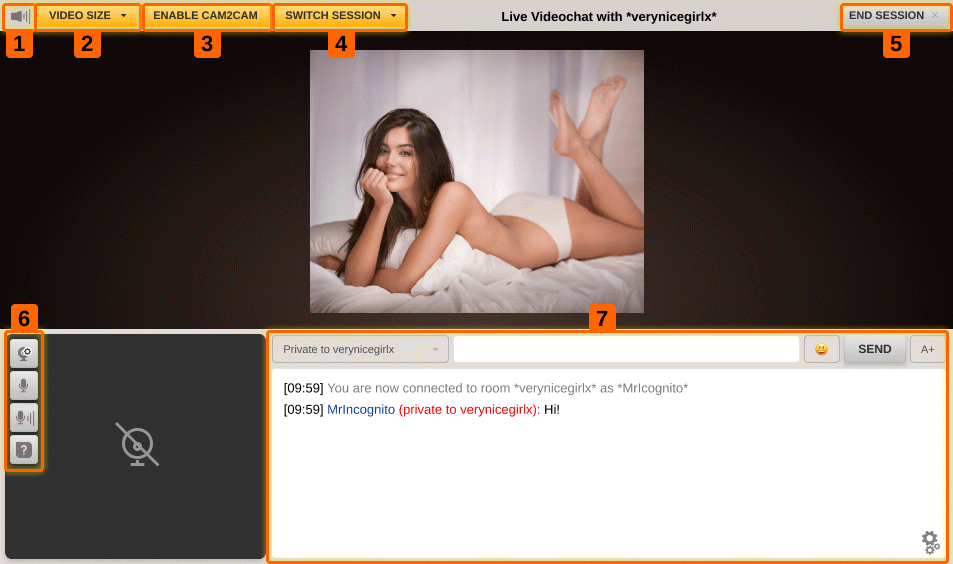
- Mute: To turn the Chathost's sound on or off
- Video size: This gives you the option to change your video viewing dimensions. The options available are small, large, full window and full screen. When you are in full screen mode, the text remains visible for a few seconds and then disappears to allow you to fully enjoy the show. Furthermore, the option to send a message is disabled whilst in full screen. To re-enable it simply hit the escape button to return to the full window display, and from here you can type and send messages as normal.
- Cam2Cam: This allows you to send your webcam image to the Chathost (to disable this option click "Stop Cam2Cam")
- Switch Session: This gives you the option of going into a One2One session, where you can have an exclusive and private show without interruption. This option is automatically disabled if the Chathost has other viewers in her room.
- End Session: This ends your current video session.
- Cam2Cam Settings: This allows you to get help, mute or un-mute your microphone, change your audio settings and change your webcam settings.
- Message Dialog box and Sending Options. You have the option to add emoticons, write and send messages, change the text size and change the text bar location (between the top and bottom of the screen). Furthermore, you have the option to change your message settings from "send to all" to "send private to the chathost".
What should I expect from a Chathost within each category?
Here follow the full descriptions of all our categories:
| NON ADULT |
|---|
|
Make New Friends Every strong relationship starts with an even stronger friendship. Find and chat with people who share your hobbies and interests. Meet new people, share advice, and discover something new! Please note that this category is strictly NON-ADULT! Nudity is strictly forbidden! |
|
Long Term Or Marriage If you are interested in a romantic relationship, here is a place where you can meet interesting women from around the world, and who knows, you might actually meet your soulmate! Profiles and photos are good, but there's no better way to get to know someone than through a live video chat! Please note that this category is strictly NON-ADULT! Nudity is strictly forbidden! |
| SOFTCORE |
|
Glamour Girls Looking for a gorgeous supermodel? A sexy chat with a beautiful and exotic woman? A playful dance, perhaps? Then this is the place for you! Just keep in mind that this category only removes the boundaries - adult behavior and nudity are allowed, but NOT required. So please be respectful of the Chathost's preferences and double check her profile prior to entering video chat. |
|
Girls - A Little Shy Meet with the perfect girl-next-door live Chathost. Natural looks, pure flirt, and spontaneous sass. There are no adult restrictions in this category. You can expect something more than just chatting - a strip show, some softcore action, or more depending on how shy the Chathost is feeling! But remember, these girls are a little shy, so be prepared for some extra sweet talk to warm them up. Please be respectful of the Chathost's preferences and double check her profile prior to entering video chat. |
|
Strip HiLo Strip HiLo is a sexy adult card game that will get you and your Chathost stripped of any inhibitions. For each round you win, your Chathost will remove an item of clothing. It's fun and highly addictive. The perfect icebreaker! |
| HARDCORE |
|
Girls - Not So Shy This is a full adult experience... anything goes! The girls here are more adventurous and freely express their naughty side. Although full and explicit nudity is expected, we still recommend checking the Chathosts' profile to see what you can expect from her show, especially if you have specific requests. |
|
Girls - Instant Action Don't have time for small talk? This is the category for you! This is a pure adult category, and nudity is not only allowed, it is a given! |
|
Girl / Girl Isn't this every guy's fantasy? These girls waste no time having fun together and making your dreams come true! Adult action is the name of the game! |
|
Fetish Do you have a fetish or are just curious about one? You can safely explore with our Chathosts. Just let yourself go and have fun! Here are just some examples of our Chathosts' expertise:
Just a tip... Fetishes are different and not all of them require Hardcore action. So, please check the Chathost's profile prior to entering video chat. |
|
Dungeon So, you've been bad... very bad! We can fix that! Enter the world of BDSM, where just about anything goes. Here's just a sample of what you can expect:
|
|
Genders Benders (TV, TS, CD) Find some of the world's most extraordinary Transvestites, Transsexuals and Transgenders in here. They will open a universe of possibilities to you. |
|
Men This category is for male performers. These guys are home alone and waiting for your commands, and because it's adult, feel free to ask for more. |
What is One2One?
When you decide to enter a Chathost video chat session, you are given two options: Open Chat or One2One.
One2One gives you the option to have an exclusive and private session with the Chathost. Under this option you get his or her full attention for every second of your chat. No interruptions - no bother - no one else! It's the ultimate CamContacts experience.
No special equipment or software is needed to have a One2One session. Simply select the One2One option before entering any live video chat session, or during an Open Session choose "Switch Session" and One2One from the top left of the chat window.
Please note the One2One option is only available should the Chathost be alone. If there are any other members in chat with the Chathost, you will not be able to enter using this option.
I can't hear any sound coming from the Chathost. Why?
This could either be because the host does not offer sound (Chathosts that offer sound have a speaker icon next to their profile picture) or because the Chathost may have a technical issue with their microphone, or the volume may be too low on your computer.
If the sound quality is not suitable, you can always mute the sound of the Chathost or see if another Chathost is offering sound.
How do I know when the Chathost can see me in Cam2Cam?
You can be sure that the Chathost can see you if you can see yourself after clicking on Cam2Cam.
When you start a Cam2Cam video session, please remember to close any other software that is using your webcam OR use software that allows you to share camera access to avoid the indication that your camera is being used by other apps.
The image that the Chathost sees of you is bigger than the image that you can see on your screen.
The Chathost cannot see me when I'm in video and select Cam2Cam. Why?
It is possible that your webcam is being used by another program in your computer. In such case, you have 2 options:
- Make sure no other software is using your webcam when you start a Cam2Cam video session (e.g. Skype).
- Use software that allows you to share camera access with the original program using your webcam and CamContacts.
You can be sure that the Chathost can see you if you can see yourself after clicking on Cam2Cam.
Can the whole world see me when I have my webcam connected?
No! You can only be seen by the Chathost who is in the same video chat session with you. For privacy reasons, CamContacts does NOT record, save, monitor, or moderate the video streamed by our Viewers.
The video quality is poor
We recommend Chathosts to use high definition cameras to ensure each and every video session is of excellent quality regardless of the actual video size. If the quality is poor we recommend that you decrease the video size.
I want to follow my favorite Chathosts. How can I do this?
Easy! You can add a Chathost to your Favorite's List by clicking on the little heart icon on the Chathost profile page. You can also choose to be alerted by email when they come online.
How can I manage my Favorite Chathost List and Alerts?
You can manage your Favorites List on the My CamContacts (Viewer Services). Under "Favorites" you can remove favorites from your list and manage your alerts as you wish.
CamContacts Card Game: What's this all about?
Strip HiLo is an online strip card game you play with your chosen chathost. No software download is required. Every round you win, she loses a piece of clothing. Shoes, top, skirt and undies - they are yours to take if you guess who has the highest card. First you choose which item she will take off if you guess right, continue until she is naked and ready to play another game, or now that the ice is broken, maybe you wish to play at something else - it's up to you.
You can find the Chathosts playing this highly addictive and fun game under the pull-down menu on the "Who's Online Now" page by selecting "Strip HiLo".
What is Strip HiLo?
Strip HiLo is a card game you play with a Chathost; you are playing to get her out of her clothes.
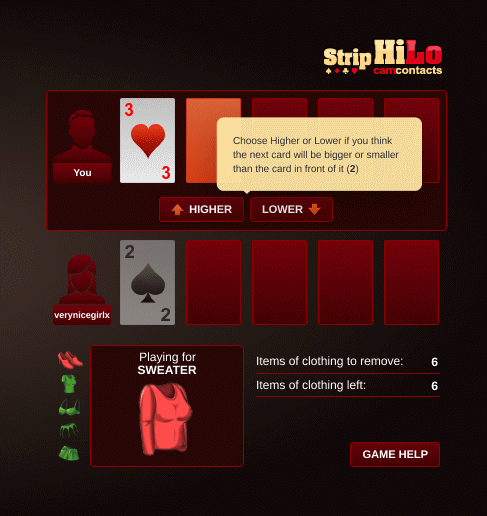
The game uses a standard deck of 52 playing cards (Jokers not included!) and consists of several rounds. Every round, you and the Chathost start with one open card each, you will then alternately deal more cards and will need to guess if the next card will be higher or lower than the previous one.
You will see your cards at the top of the playing screen, and your opponent's right below them.
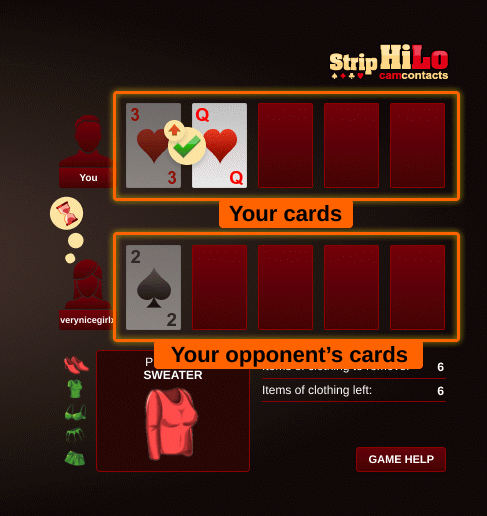
You will see whether the Chathost's last guess was correct or not.
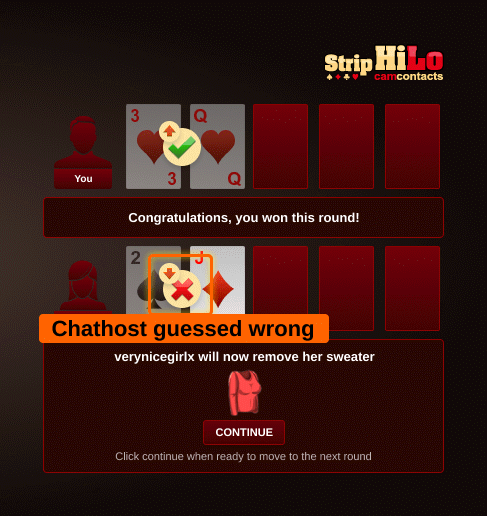
The order of the cards is Ace (lowest), 2, 3, 4, 5, 6, 7, 8, 9, 10, Jack, Queen, King (highest).
When the Chathost loses a round, she will remove an item of clothing, until there are no clothes left to remove. If you lose, the round is restarted.
Once you have successfully removed all Chathost's clothing, you may continue your Video Chat, or play again.
What are CamContacts "Gifts"?
CamContacts Gifts are a great way to show your appreciation to your favorite Chathosts. CamContacts Gifts are virtual – they exist only in the CamContacts world – when you send a Chathost a Gift, they'll immediately see a picture of the Gift you chose, and they'll receive their share of the corresponding monetary value of that Gift.
How can I send a gift to a Chathost?
Easy! Using the Gifts button, you can send a Gift to any Chathost. You can do this either during a video session (look for the Gifts button on the right-hand side of the screen), after a video session (using the button on the "end video session" screen), or when you're just browsing (simply by clicking the Gifts button on the Chathost's profile page).
How will the Chathost know I sent her a gift?
If you send a Gift during a video session, the Chathost will be notified in the chat box immediately after you click the send button. For Gifts sent outside a video session, the Chathost will be notified next time she logs in.
What if I need more assistance sending the gift?
Once you have clicked the Gifts button, you'll see a window showing you the available Gifts (based on the funds you have in your Gift Box). In the top left-hand corner of this window you'll see a question mark - clicking on it will show more instructions to help you.
As always, if you have any other questions you can contact our customer service team and we'll be happy to assist you further.
I forgot my password and/or screen name. How can I retrieve it?
Don't worry, we'll assist you in no time. Please contact us and provide your registered email address and the last 4 digits of any registered payment card. By including your full name and your address in your email will allow us to find your account faster.
How can I change my password?
Please visit the My CamContacts (Viewer Service), scroll down to find the Manage Account option, then click on the Change Password link.
NOTE! To change your password, you must be already logged in to your account. If you forgot your password and/or your screen name and you cannot login, please contact us and provide your full name, address, email address and last 4 digits of any registered payment card so we can swiftly assist you.
My account is inactive (or closed at user request). I want it back!
Please contact our Customer Support to reactivate your account. Please include as much information as possible, including your screen name, registered email address, full name and address. Once we verify your request, your account will be reinstated and ready for use again.
My account won't allow the use of any services. What's the problem?
It is most likely due to a problem with your payment card. You can add a new card by going to My CamContacts (Viewer Services), scroll down to the Payment area and click on Payment Settings.
Alternatively, you can resolve the problem with your current card, most likely by adding additional funds, and if that doesn't work then by contacting your card issuer.
If you need any assistance, please contact us.
How do I change my account details?
Some details, such as your password or payment card used for billing can be changed from the My CamContacts (Viewer Services) section, that you can access by clicking your Screen Name.
Once you are on that page:
- Select Manage Account and then Change Password if you need to change it or
- Click on your Payment Settings to add or change your payment card.
For all other changes, please contact our 24/7 Customer Support and we'll help you right away.
Are video chat sessions free or paid?
Most videochat sessions with our Chathosts are paid-for, although you might find some free ones. You can negotiate the price for live video sessions directly with the Chathost. There is no charge for browsing our website or text chatting with the Chathost. You will only ever be charged by us for paid video sessions and for topping up your Gift Box.
If the video session you are in is free, you will see the icon in Description of Chathost sessions on Who is online page.
How do I get billed and what do I pay for?
Browsing CamContacts is free. The only things that you will be charged for are pay-per-minute videochat sessions and choosing to top up your Gift Box.
Before entering any video session you will see a notification page that informs you very clearly about the price per minute that you'll be billed. The page requires you to confirm and accept the charges before the video session and the billing begins.
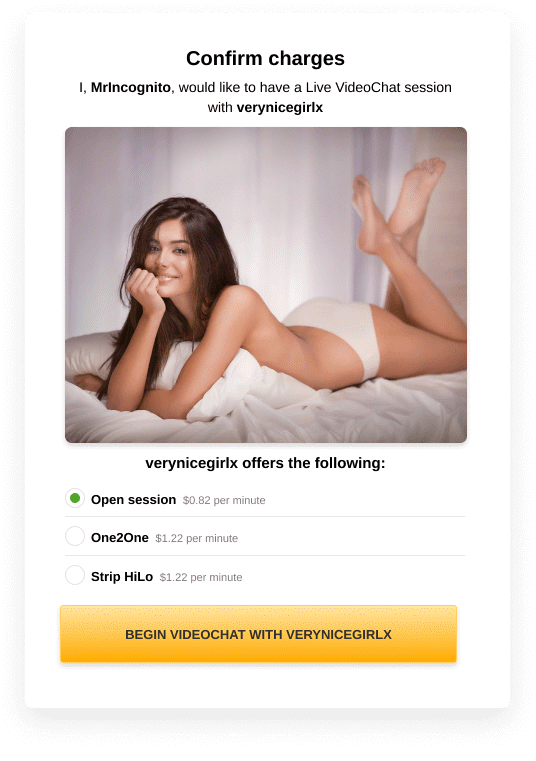
We will bill the payment card that you have registered with us, and it will be billed only for the video sessions that you agree to enter and any amounts you choose to add to your Gift Box. You can enter the details of more than one payment card and can choose which card is used.
Please note that "Open session" means that at any given time, any other member may enter private while you are already there.
Selecting "Private One2One session" ensures that the video chat is only between you and the Chathost. No one else will be able to enter your session and therefore the price per minute is usually higher than for the "Open Session" option.
Is my personal information secure?
All of your personal information is encrypted, which means it cannot be accessed or read by any unauthorized party. We use SSL (Secure Socket Layer) encryption, which is the best available technology for online security and privacy. Please read our Privacy Policy for full details.
Can I check how much I've spent? Do I get a statement?
Yes, you can always access the billing history of your account by visiting My CamContacts (Viewer Services). Scroll down to the Account area and enter Video Sessions List where you will see a complete list of your sessions.
Alternatively, you can choose Payment Card Statement to see all the charges that we've made to your payment cards. If you click on Details, next to the individual amounts, then you will see a detailed breakdown of the video chat sessions related to that charge.
Furthermore, every time that your payment card is charged for our services, we send you an email to let you know.
I've got a failed payment on my account. What now?
Please ensure that enough funds are available on your payment card. After checking your card, log in to your CamContacts account and go to Payment Card Details in My CamContacts (Viewer Services). You can click on the resubmit button and we will try again to take the payment from your payment card.
If you prefer you can contact our Customer Support and we will assist you by resubmitting the payment for processing again. Once we receive the result, we will let you know about it.
Can I update my payment card if it is expired?
Sure! Just go to Payment Card Details under My CamContacts (Viewer Services) and select the expired payment card that you wish to replace. Finally, click on "Add Payment Card" and enter the replacement card details. Done!
Who do I contact if I would like to discuss my billing?
Our Customer Support operates 24/7 and can be reached here.
We guarantee a reply within 24 hours, but most enquiries are processed within just 20-40 minutes.
Click here for our contact details.
Why do you send a billing confirmation email if I haven't recently used CamContacts?
If some of the charges look unfamiliar, this may be because they relate to some of your previous spending which has only now been charged to your payment card.
This often happens if there was a charge that was originally declined by your card issuer but that can now be processed as your card issuer is now accepting the transaction.
Visiting the link in our Billing Confirmation email provides you with exact details of when the spending occurred on your CamContacts account and what it related to.
I received more than one billing confirmation for the same amount. Why?
Please note that you have not been charged more than once for the same session. We only charge for the time you spend in paid video sessions with Chathosts or when you decide to top-up your Gift Box.
However, please be aware that payments for longer videochat sessions are usually split into smaller parts. Because of this you may receive several bills that make up the total session charge (such charges can occasionally be for identical amounts). You can always check how much each session cost in total in your Session Statistics. If you require assistance understanding your billing please do not hesitate to contact us.
Can I use a debit or check card to watch chargeable videos?
All cards with the Visa or MasterCard logos should work fine, including credit, debit, prepaid, virtual, and gift cards.
My card is 'Not Honored by the Bank', what does that mean?
This means your card issuer has declined the billing transaction, either during our pre-authorisation check in respect of a new card or when we've charged you for a video session or a top-up to your Gift Box.
The most frequent reasons why a card might be not honored are:
- There are insufficient funds on your account
- Our merchant name 'CC Media Network' may be new to your card issuer
- Your card is not permitted for online purchases or international transactions
- Your card is limited to a certain number of transactions or online transactions
- When registering your card, you have entered an incorrect CVV code/expiry date
This should be easily solved by the following steps:
- Contact your card issuer and give them approval for transactions from CC Media Network, and also ask them to make sure none of the restrictions mentioned above apply to your card
- Ask our Customer Support to try your card again. You can simply email us with your Screen Name and the details
- Log in to your account and go to Payment area under My CamContacts (Viewer Services). Click on the resubmit button and we will try again to take the payment from your payment card
- Finally, you can simply add another payment card.
Contact us for assistance with any card-related problems.
My card is 'Expired'...
In case your payment card expired please go to Payment Card Details on My CamContacts (Viewer Services), select the expired card that you wish to replace. Once identified, click on "Add Payment Card" and then enter the payment card details. In case it is returned with any other status than 'fine', just drop us an message here.
My card is 'Not Validated'…
You just need to wait a few moments while the card pre-authorization is completed. This might take longer if there is a problem with your card. If that's the case, simply contact us and we'll advise you further.
My card is 'Closed at User Request'...
You have asked us to close the payment card for use on the CamContacts at some time previously. If you want to reactivate it, please contact us for assistance.
My card is 'Declined by the Bank'...
This means your card issuer has declined the billing transaction, either during our pre-authorisation check in respect of a new card or when we've charged you for a video session or a top-up to your Gift Box.
The most frequent reasons why a card might be not honored are:
- There are insufficient funds on your account
- Our merchant name 'CC Media Network' may be new to your card issuer
- Your card is not permitted for online purchases or international transactions
- Your card is limited to a certain number of transactions or online transactions
- When registering your card, you have entered an incorrect CVV code/expiry date
This should be easily solved by the following steps:
- Contact your card issuer and give them approval for transactions from CC Media Network, and also ask them to make sure none of the restrictions mentioned above apply to your card
- Ask our Customer Support to try your card again.
- Log in to your account and go to Payment area under My CamContacts (Viewer Services). Click on the resubmit button and we will try again to take the payment from your payment card
- Finally, you can simply add another payment card.
Contact us for assistance with any card-related problems.
How can I see all messages from a specific Chathost?
Easy! You can filter the messages from a specific Chathost by clicking the icon next to the Chathost Screen Name, in your ccMail Inbox.
How can I change number of messages displayed on one page?
Under the "Options" area you will be able to update the number of messages displayed per page.
Can I limit the number of messages a Chathost can send me if I do not reply?
Yes. Under the "Options" area you can update the number of messages you want to receive from Chathosts without your response.
How can I block a Chathost from contacting me?
You can block a Chathost from messaging you by clicking the "Block" icon , from the message itself.
In case you wish to block a Chathost you do not have a message from, you can access the Blocklist area on your ccMail Home Page and add the Screen Name to the list.
Why can't I send messages to a specific Chathosts?
The most frequent reasons for not being able to send messages to a specific Chathost are:
- The limit for the number of messages received by that user has been exceeded. Any user can set a maximum number of messages they want to receive from another user.
- The Chathost has added you to their blocklist.
What type of files can I attach to ccMail?
You can attach files in the following formats (up to 20 MB each):
- Images: JPG, GIF, PNG
Enjoy our private adult webcam chatrooms where nothing gets between you and your desires.
Leave behind all the noise and interruptions of open chat so common on other sites. At CamContacts you get to be the center of attention- or make your cam model the center of yours!